> For the complete documentation index, see [llms.txt](https://guide.hypercape.com/llms.txt). Markdown versions of documentation pages are available by appending `.md` to page URLs; this page is available as [Markdown](https://guide.hypercape.com/connect-shopify-guide/step-3.-sync-and-fulfill-orders.md).

# Step 3. Sync & Fulfill Orders

Process one test order end-to-end: sync → pay → shipment → tracking.

{% hint style="info" %}

#### Before you start

* Your store must be connected. See [Step 1. Connect Shopify](/connect-shopify-guide/step-1.-connect-shopify.md).
* The ordered product must be imported via Hypercape. See [Step 2. Import Products](/connect-shopify-guide/step-2.-import-products.md).
  {% endhint %}

### What you will do

1. Customer places an order on Shopify
2. Sync orders in [Hypercape BIZ](https://biz.hypercape.com/orders)
3. Pay (supply price + shipping cost)
4. Hypercape ships
5. Tracking appears in the order list

### Steps (recommended for your first test order)

#### 1) Create a real paid order in Shopify

Create a test order for one imported product.

Make sure it is a normal, paid order (not a draft).

#### 2) Open your order list in Hypercape BIZ

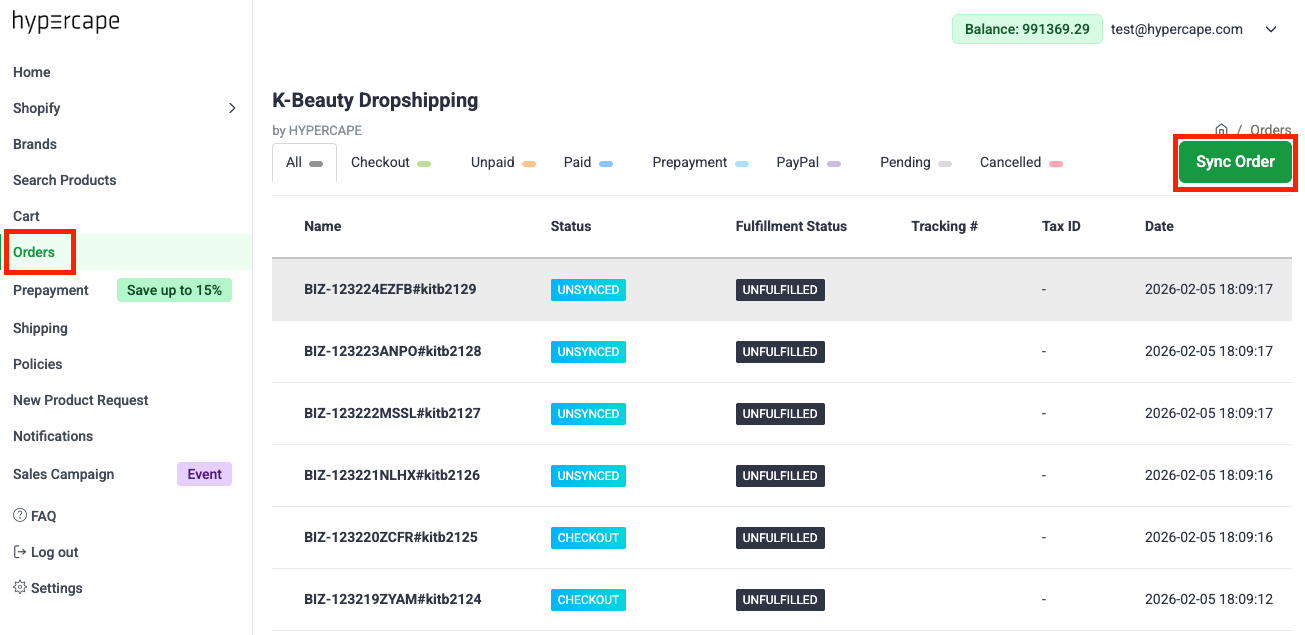
<figure><img src="https://3720355098-files.gitbook.io/~/files/v0/b/gitbook-x-prod.appspot.com/o/spaces%2FKmVnLoHDk5ZkU3shqZqa%2Fuploads%2F1oLdEeihVtKS63Cb3TLA%2Fimage.png?alt=media&amp;token=72efb0a5-9c2e-41fc-b68a-802151f31c5a" alt="Hypercape BIZ Orders page"><figcaption><p>Open the Orders page in Hypercape BIZ.</p></figcaption></figure>

Go to the Shopify orders area in [Hypercape BIZ](https://biz.hypercape.com/orders).

You should see a **Sync Orders** button.

#### 3) Sync orders

Click **Sync Orders**.

Wait a few seconds for the list to refresh.

<figure><img src="https://3720355098-files.gitbook.io/~/files/v0/b/gitbook-x-prod.appspot.com/o/spaces%2FKmVnLoHDk5ZkU3shqZqa%2Fuploads%2F6FGYRWNqLHU0NjWNkLra%2F%E1%84%89%E1%85%B3%E1%84%8F%E1%85%B3%E1%84%85%E1%85%B5%E1%86%AB%E1%84%89%E1%85%A3%E1%86%BA%202026-02-12%2017.19.12.png?alt=media&amp;token=5faf6efa-b0a0-47a6-8312-b42528581a7d" alt="Order appears in the list after syncing"><figcaption><p>After syncing, your Shopify order should appear in the list.</p></figcaption></figure>

{% hint style="warning" %}
If your order doesn’t appear after syncing, jump to [\[Partner Seller\] Troubleshooting](/reference/partner-seller-troubleshooting.md).
{% endhint %}

#### 4) Review the payable amount

Open the synced order details.

<figure><img src="https://3720355098-files.gitbook.io/~/files/v0/b/gitbook-x-prod.appspot.com/o/spaces%2FKmVnLoHDk5ZkU3shqZqa%2Fuploads%2FybUjHNUv3O3yhrkKKyBt%2Fimage.png?alt=media&amp;token=34cd770c-1202-4d04-bd9e-f24b19445a28" alt="Order detail shows supply price and shipping cost"><figcaption><p>Check the <strong>supply price</strong> and <strong>shipping cost</strong> on the order detail page.</p></figcaption></figure>

Confirm the payable total:

* **Supply price** (Hypercape cost)
* **Shipping cost** (freight)

Shipping cost is charged per order. It is not per product.

{% hint style="info" %}
Your customer pays your Shopify retail price.

You pay Hypercape (supply + shipping).

Your margin logic is in [\[Partner Seller\] Shipping & Margin](/reference/partner-seller-shipping-and-margin.md).
{% endhint %}

#### 5) Pay to trigger fulfillment

Pay from the order detail page.

Payment method: **PayPal** (you can apply **Prepayments** credits first).

Prepayments are credits in your Hypercape account that reduce what you pay via PayPal.

{% hint style="warning" %}
If you don’t have enough prepayments, you will pay more via PayPal.

If PayPal payment fails, try again or contact support.
{% endhint %}

1. Choose **Payment** on the checkout screen.
2. Apply **Prepayments** if available.
3. Complete payment with **PayPal** for the remaining amount.

<figure><img src="https://3720355098-files.gitbook.io/~/files/v0/b/gitbook-x-prod.appspot.com/o/spaces%2FKmVnLoHDk5ZkU3shqZqa%2Fuploads%2FHQZZ5F9I2nyjdUb9kGNY%2Fimage.png?alt=media&amp;token=03721d58-562d-47a7-96aa-2c7e248d3704" alt="Checkout window for Payment (Prepayments + PayPal)"><figcaption><p>Example: Payment checkout window (Prepayments + PayPal).</p></figcaption></figure>

<figure><img src="https://3720355098-files.gitbook.io/~/files/v0/b/gitbook-x-prod.appspot.com/o/spaces%2FKmVnLoHDk5ZkU3shqZqa%2Fuploads%2FSrGNwmwVbYi0biYyltHd%2Fimage.png?alt=media&amp;token=614b51a6-86ff-46f9-b6da-223bba8fd404" alt="Order status changes to Fulfilled after payment"><figcaption><p>After payment, the order status changes to <strong>Fulfilled</strong>.</p></figcaption></figure>

After payment, Hypercape starts fulfillment.

{% hint style="info" %}
If you plan to cancel/refund the end customer, contact support first.

Policies vary by case. See [\[Partner Seller\] Policy & Compliance](/reference/partner-seller-policy-and-compliance.md).
{% endhint %}

### Payment Requirement

**You must pay for the order BEFORE Hypercape ships to your customer.**

* Your customer places an order at your Shopify store price
* You pay Hypercape supply price + shipping fee
* Hypercape ships the order directly to your customer

### Order Processing Time

* **0-2 business days** (may take longer depending on product/situation)

Processing starts after your payment is completed.

### After shipment

<figure><img src="https://3720355098-files.gitbook.io/~/files/v0/b/gitbook-x-prod.appspot.com/o/spaces%2FKmVnLoHDk5ZkU3shqZqa%2Fuploads%2FP7awW9yHkeHChYH9WEEU%2Fimage.png?alt=media&amp;token=f5ac83e4-989c-4f52-8bf2-f63a5bf067e6" alt="Tracking number appears after shipment"><figcaption><p>After shipment, tracking number and tracking link appear in the order list.</p></figcaption></figure>

Open the Orders page anytime: <https://biz.hypercape.com/orders>

### Common exceptions (link only)

For out-of-stock, quantity limits, and sync failures, see:

* [Troubleshooting](/reference/partner-seller-troubleshooting.md)
* [\[Partner Seller\] Troubleshooting](/reference/partner-seller-troubleshooting.md)

For customs/duty and return rules, see:

* [\[Partner Seller\] Policy & Compliance](/reference/partner-seller-policy-and-compliance.md)

### Need help?

Email: **<help@hypercape.com>**
